
Flux 2 Image Model Guide: Capabilities, APIs, and Best Practices

If you’ve been following AI image generation, you’ve probably seen “Flux 2” everywhere. It’s not just another pretty-picture model. Flux 2 is positioned as a next-generation AI image model that blends 4MP resolution, multi-reference control, and strong text rendering into a single system. This guide walks you through what Flux 2 is, how its text-to-image and editing features actually work, where you can run it, and how to plug it into real production workflows via modern AI APIs.
What Is Flux 2 and Why Flux 2 Matters Now
When you see people talking about “Flux 2,” they’re referring to a family of Flux 2 image models released by Black Forest Labs. These models focus on high-fidelity, controllable image generation instead of just flashy demos. You get detailed 4MP images, more reliable text on images, and better handling of real-world structure and lighting than earlier Flux versions.
In practice, Flux 2 behaves more like an intelligent AI image generator than a simple prompt-in, picture-out toy. You can feed it rich prompts, structured JSON instructions, and even multiple reference images to steer composition, style, and identity. That makes it a strong candidate whenever you need photorealistic Flux 2 text-to-image output that also obeys layout, brand, or product constraints.
Flux 2 vs Earlier Flux Models: What Actually Changed
Before you decide where Flux 2 fits into your stack, it helps to understand how it differs from the Flux 1.x line. You’ll see references to better realism and text, but those claims only matter if they translate into clearer benefits for your use cases.
Most of the meaningful changes fall into three buckets: resolution, consistency, and control. Together, they explain why “Flux 2” and “Flux 2 AI image generator” are quickly becoming popular search terms among developers and creative teams.
1. Higher effective resolution (up to 4MP)
Flux 2 supports up to 4MP outputs, which means you can generate images suitable for hero banners, print-style layouts, or heavily cropped assets. You don’t have to rely as much on separate upscalers, and you can run a full Flux 2 image model pipeline with fewer post-processing steps.
2. Multi-reference consistency
Earlier models made it hard to keep a product, logo, or character consistent across many images. Flux 2 introduces reliable multi-reference behavior, so you can supply multiple example shots and ask for new scenes using those references. That’s especially valuable for product catalogs, character IP, and recurring ad creatives.
3. Better text and layout understanding
Text on images has always been a pain point. Flux 2 significantly improves how it renders words, small UI labels, and dense layouts such as infographics. Combined with structured prompting, this lets you create interface mockups, slide visuals, and social cards where text is not just decorative, but actually legible.
The Flux 2 Model Family: Pro, Flex, Dev Explained
When people talk about “Flux 2,” they often mean different variants. You’ll see names like Flux 2 Pro, Flux 2 Flex, and Flux 2 Dev across docs, platforms, and pricing pages. Each variant targets a different way you might want to use the model.
Understanding the differences will help you decide whether to run Flux 2 locally, through a Flux 2 Dev API, or via higher-end Pro/Flex endpoints optimized for production workloads.
● Flux 2 Pro – This is the flagship, high-quality configuration. It prioritizes image fidelity, detail, and stability, making it the obvious choice for mission-critical campaigns, product visuals, and brand assets. If you see a reference to a Flux 2 Pro API, it typically points to a production-grade service rather than a research-only endpoint.
● Flux 2 Flex – Flex focuses on flexibility and cost control. Instead of always pushing 4MP outputs, you can tune resolution, speed, and cost to fit large-scale workloads. For teams generating thousands of images per day, a Flux 2 Flex style plan can make pricing much more predictable.
● Flux 2 Dev / open weights – Dev variants are designed for experimentation and self-hosting. Open weights for Flux 2 Dev allow you to pull the model onto your own infrastructure or use it via community platforms. You’ll often see people searching for “Flux 2 run locally” or “Flux 2 Dev open weights” when they want full control over deployment.
Real-World Use Cases for the Flux 2 Image Model
The fact that Flux 2 can render beautiful images is not enough on its own. What matters is how you can use this Flux 2 AI image generator in real business scenarios where consistency, text, and layout matter as much as aesthetics.
If you’re deciding whether Flux 2 should be in your stack, it helps to think in terms of concrete outcomes rather than model benchmarks or vague creativity claims.
Product and ecommerce visuals
You can feed Flux 2 multiple reference shots of a product and generate new scenes that keep shape, color, and branding consistent. Multi-reference inputs make it easier to produce on-model lifestyle imagery, seasonal campaigns, or region-specific variants without reshooting everything.

Prompt: A stylish 30-year-old Asian woman wearing [paste ref 1: exact white sneaker] and [paste ref 2: navy trench coat], laughing while walking through a sunlit Paris street café in autumn, golden hour, shot on 50mm, professional product photography, ultra-detailed, 2K

Ad creatives and performance marketing
Because the Flux 2 image model supports high resolution and detailed text, it can generate ad assets that survive cropping, overlays, and platform compression. You can generate multiple A/B variants with consistent characters, backgrounds, and CTA blocks while only changing the message or layout.
Prompt: Identical composition and model as previous ad, only change headline to “Glow like never before – 50 % OFF today only”, same font and placement, everything else 100 % identical

Brand visuals, UI mockups, and infographics
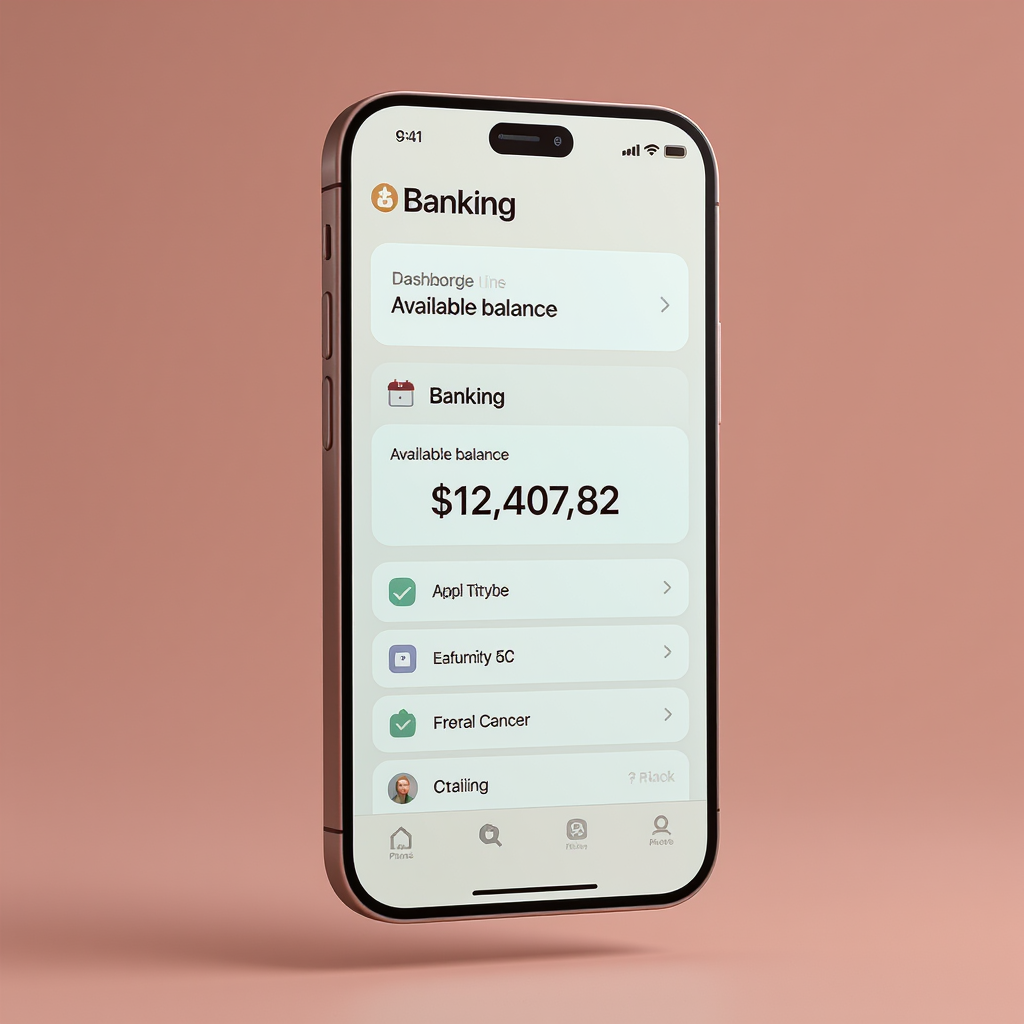
Flux 2’s improved text rendering is ideal when you want dashboards, app screens, or data visuals that still read correctly after resizing. By combining brand colors, layout constraints, and descriptive prompts, you can use Flux 2 as part of a system that generates UI explorations and pitch-deck imagery.
prompt: iPhone 15 Pro screen floating in soft clay-style scene, displaying a banking app dashboard in brand colors #0066FF and #00C48C, clean sans-serif text perfectly legible: “Available balance $12,407.82”, subtle shadow, aesthetic product render, 4K
Social content and editorial assets
For blogs, newsletters, and social feeds, you can generate a stream of on-brand visual content using Flux 2. The model is especially helpful when you need a consistent character, mascot, or visual theme that threads through your posts over time.
prompt: A cheerful 3D cartoon red fox mascot (lock exact character from reference image: same fur pattern, big fluffy tail, bright green eyes, wearing a tiny black leather jacket and silver necklace), standing confidently on a rooftop overlooking a neon cyberpunk city at golden hour, dynamic three-quarter view, cinematic lighting, vibrant colors, highly detailed, perfect for Instagram carousel and blog headers, 4K,

Ways to Run Flux 2: Local Setup, Cloud Platforms, and APIs
Once you’re convinced Flux 2 is worth trying, the next question is how to run it. Your options cover everything from local ComfyUI graphs to managed Flux 2 Pro API services and cloud platforms like Workers AI.
Most teams end up mixing at least two of these paths: one for experimentation and another for production workloads that demand stability and monitoring.
Local: ComfyUI and self-hosted pipelines
If you have a capable GPU, you can run Flux 2 locally using ComfyUI or similar tools. This gives you maximum flexibility to chain models, inspect intermediate steps, and design custom workflows. It’s ideal for experimentation and for teams who want to fine-tune or extend Flux 2 with their own layers or pre/post-processing.
Cloud playgrounds and hosted APIs
You’ll also see Flux 2 exposed on model platforms and API aggregators. These services provide simple HTTP endpoints, SDKs, and dashboards, so you can call a Flux 2 text-to-image or image-to-image endpoint without dealing with infrastructure. That’s typically the fastest way to ship proofs of concept or internal tools.
Edge and serverless platforms
Some providers are integrating Flux 2 Dev APIs into edge environments like Workers AI. That lets you run generation closer to your users and combine text, image, and other modalities in a single serverless pipeline. If latency and global coverage are priorities, this route is attractive.
The downside of all these choices is that you quickly end up juggling different APIs, dashboards, and pricing models. That’s where a unified AI API layer becomes valuable.
Why a Unified AI API Layer Helps When You Adopt Flux 2
If you only ever call one Flux 2 API, managing everything directly is fine. But as soon as you start mixing Flux 2 with other image models, LLMs, and tools, the surface area explodes: different authentication schemes, request formats, limits, logs, and cost structures.
This complexity shows up fast when you try to move from a single “Flux 2 demo” to a production system that runs 24/7 and powers real features for your users.
A unified API layer solves several recurring problems:
● Vendor lock-in and model switching – You may like Flux 2 today, but you might also want to experiment with other models or future versions. A unified layer lets you swap models behind the same interface without rewriting your app.
● Cost and performance routing – Different providers have different Flux 2 pricing, latency, and availability characteristics. With a central routing layer, you can send low-priority jobs to cheaper backends and keep premium capacity for critical workloads.
● Centralized monitoring and governance – Once you run multiple Flux 2 image model endpoints and other AI services, it becomes important to track usage, errors, and performance metrics in one place. A unified layer makes it easier to audit and scale.
Instead of wiring your application directly to a single Flux 2 Pro API or Dev endpoint, you can place an orchestration layer in the middle that manages connections to many providers and models.
Using Flux 2 and Other Image Models Through a Unified API with Siray
Siray is built around this idea of a unified AI API layer. You interact with one consistent API, and behind the scenes, it connects you to a large catalog of models across text, image, and video. That means you can treat Flux 2 as just one powerful option in a broader toolbox rather than a special case that requires its own integration.
From your perspective, there are a few practical benefits to routing Flux 2 AI image generator workloads through a platform like Siray:
● One interface for many models – You write a single integration that can call hundreds of models, including image generators and LLMs. You don’t have to maintain separate client libraries and auth flows for each provider.
● Simpler experimentation – You can compare Flux 2 with other image models using playground feature to visulalize the output result before integration. That makes it easier to run experiments, track results, and standardize quality checks across models.
● Production-ready workflows – Instead of handling job queues, retries, and status polling yourself, you can use Siray’s task abstractions for long-running text-to-image or image editing operations. The same pattern works whether you’re calling Flux-related models or other APIs.
As more partners expose Flux 2 Pro APIs, Dev variants, and future Flux releases, this kind of aggregation becomes increasingly valuable. You keep control over how and where models are called, while offloading much of the integration and orchestration overhead.
Example Workflows: How Flux 2 Fits Into Production Pipelines
To see how this plays out in practice, it’s helpful to walk through a few example workflows. In each case, you use Flux 2 as the core AI image generator, while a unified API like Siray handles the bigger picture of coordination and scaling.
1. Automated e-commerce asset generation
You start by collecting product packshots or lifestyle shots as reference images. For each SKU, you call a Flux 2 text-to-image or image-editing task with multi-reference inputs that preserve brand and product details. Your backend uses Siray’s API to manage jobs, write outputs to storage, and pass metadata to your CMS, so you can update large sections of your catalog automatically.
2. Creative engine for marketing campaigns
Your marketing team wants dozens of on-brand variations for each campaign: hero visuals, vertical social posts, and story-format assets. You define a prompt template that specifies brand colors, typography hints, and layout guidance for Flux 2. Using Siray’s orchestration, you can generate batches of images, log their parameters, and feed performance data back into future prompt iterations.
3. Built-in AI features inside your product
Imagine you’re adding a “generate cover image” button inside a publishing or design tool. Instead of wiring your product directly to a single Flux 2 API, you call Siray with a high-level task definition. Today that might route to a Flux-family model; tomorrow you could add fallbacks or region-specific providers without changing your app’s client code.
In all of these examples, Flux 2 provides the visual intelligence, but the orchestration, routing, and lifecycle management live inside a unified API layer.
Prompting and Control Tips for Flux 2
Even the best Flux 2 AI image model will disappoint if you feed it vague prompts. To get the most from Flux 2 text-to-image and editing endpoints, you should treat prompting as a design surface instead of an afterthought.
A few practical guidelines can dramatically improve your results:
● Be explicit about structure and intent
Describe the composition (“close-up,” “wide shot,” “three-quarter view”), the subject (“product on marble table,” “character facing camera”), and the mood or style (“soft studio lighting,” “cinematic contrast”). Flux 2 responds well to prompts that balance creative guidance with clear constraints.
● Use multi-reference inputs thoughtfully
When you rely on the Flux 2 multi-reference capability, label your references mentally: “primary product,” “background texture,” “pose reference,” etc. Write prompts that mention these roles so the model knows how to blend them, rather than hoping it guesses what each reference means.
● Call out text and layout needs directly
If you want call-to-action text or UI labels, say so: specify the wording, where it should appear, and whether it should be sharply readable. For complex layouts, think of the prompt as describing a wireframe: top banner, central hero, bottom text block, logo position, and so on.
● Experiment with resolution and aspect ratios
Flux 2 reaches its best fidelity at higher pixel counts, but you don’t always need a full 4MP output. For web banners or social posts, you can experiment with smaller resolutions that cut cost while preserving enough detail for your use case.
As you iterate, keep a record of prompts, parameters, and outputs. That history becomes a powerful internal “Flux 2 prompt guide” you can share across your team.
Conclusion: Where Flux 2 and AI Image APIs Are Heading
Flux 2 arrives at a moment when teams are asking for more than beautiful samples. You need image models that understand layout, text, and brand, and that can live inside reliable pipelines rather than isolated playgrounds. With 4MP resolution, multi-reference consistency, and stronger control, Flux 2 pushes the AI image generator category toward that more practical, production-ready future.
The next step is choosing how you want to run it. You can experiment locally with tools like ComfyUI, call managed Flux 2 Pro or Flux 2 Dev APIs, or plug it into a unified layer like Siray that sits across multiple models and providers. Whichever route you take, treating Flux 2 as part of a broader API and workflow strategy will help you turn impressive demos into durable, scalable features for your users.