
MiniMax H3 for Game & UI Motion Content: A New Use Case Beyond Video Ads


Key Takeaways
- MiniMax H3's aspect-ratio range (21:9 to 9:16) covers both cinematic trailer framing and mobile UI framing in one model.
- Video-to-video motion transfer and instruction-guided edits make it useful for previewing a UI transition or icon animation before it goes to engineering.
- These clips are references and preview assets — not game-engine-ready files or a substitute for a studio's actual production pipeline.
Introduction
Most of the conversation around MiniMax H3 so far has been about selling things: product shots, ad hooks, launch clips. But the same format flexibility that makes it useful for e-commerce also makes it useful for teams that aren't selling a product at all — game studios blocking out a trailer beat, or UI/UX designers who want to see how a transition actually moves before committing engineering time to it. This piece covers that side of the model, building on the full MiniMax H3 explainer published when it launched.
Trailer & Cutscene-Style Clips
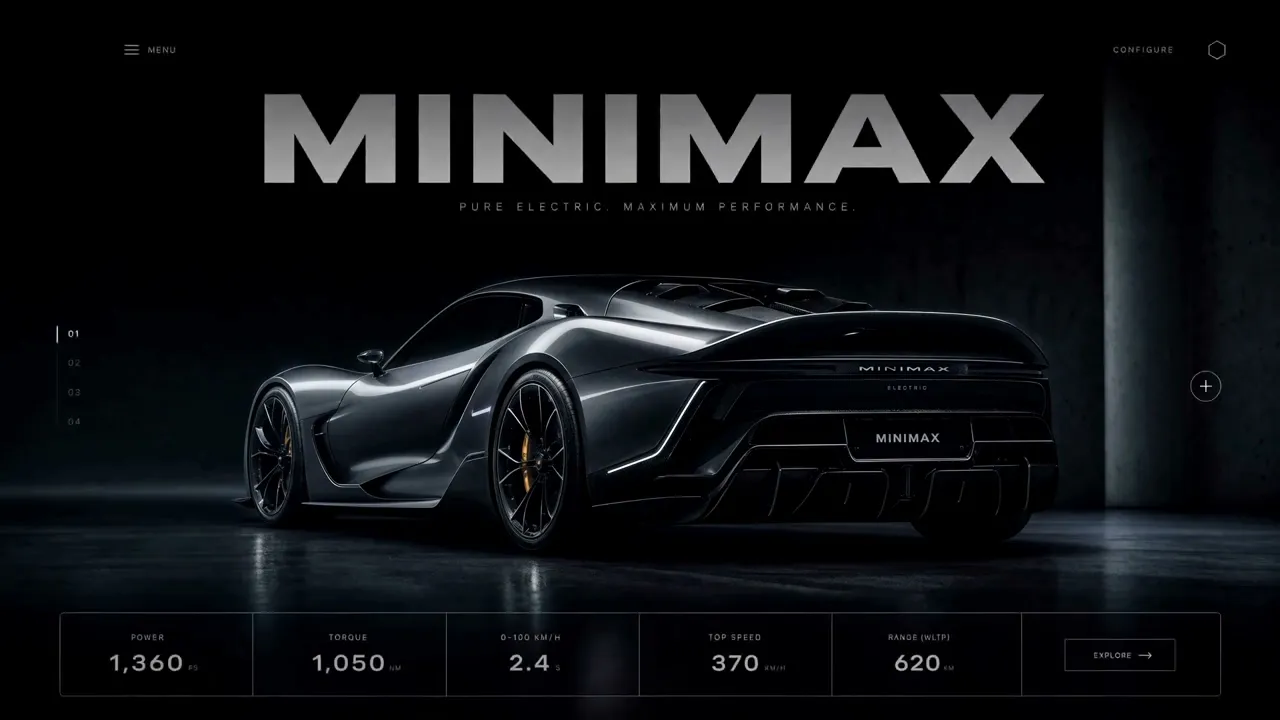
MiniMax H3 supports aspect ratios from 21:9 down to 9:16, which means a 21:9 cinematic frame is available without cropping or reformatting a square or vertical source. For a trailer beat or a mood shot — a character turning toward camera, a set piece establishing shot — the native 5-15 second clip length covers a single beat cleanly, and the Extend tool stretches that out to roughly 30 seconds when a sequence needs to breathe a little longer. Omni-reference locks a character's look or a prop's design across multiple generated shots, which matters when a trailer needs the same character to read consistently from one cut to the next rather than drifting in appearance shot to shot.
UI/UX Motion Reference
The 9:16 end of that same aspect-ratio range fits mobile app framing directly, which is useful for a different kind of clip: testing how a proposed transition, icon animation, or onboarding flow actually moves before it's built. Video-to-video motion transfer takes an existing reference clip and applies its motion to a new visual, which is a fast way to check whether a motion idea reads the way it was intended before it's handed off. Instruction-guided edits let a designer nudge a specific detail — the timing of a transition, the easing on an icon — without a full re-render from scratch.
What This Isn't
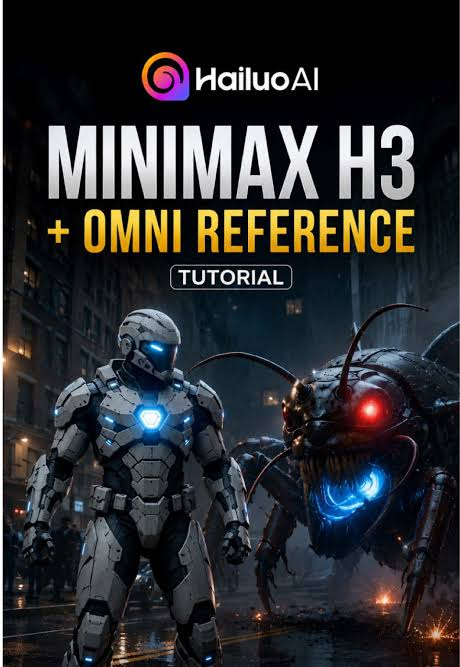
These clips are references and preview assets, not game-engine-ready files — a trailer-style clip doesn't drop into a game engine as playable content, and a UI motion preview doesn't replace a real animation spec engineering will build against. MiniMax H3's native stereo audio is a useful layer for a creative preview, but it's not a substitute for a game's actual audio pipeline or a production sound design pass.
Developer Notes
MiniMax H3 runs through the same Siray API key as every other model on the platform. The full spec table — resolution, frame rate, omni-reference limits, and audio details — is covered in the MiniMax H3 explainer; this piece doesn't repeat it.
Summary
MiniMax H3's aspect-ratio range and motion-transfer tools make it useful past the ad-and-e-commerce framing it's usually pitched with — trailer beats and UI motion previews are two more places the same model already fits.
Get Started
Register a Siray account and try MiniMax H3 for your next trailer clip or motion reference: https://console.siray.ai/model-api