
AI Product Photo Generation: Turn Raw Shots into Scroll-Stopping Product Images

Key Takeaways
- Most weak product photos aren't a product problem, they're a background/lighting/context problem — and that's exactly what instruction-based image editing fixes without a reshoot.
- Hunyuan Image 3 Instruct can swap background and lighting from a text instruction while preserving the actual product; Seedream 4.5's reference-based compositing can place a product into a specific styled scene.
- This fixes context, not a fundamentally bad source photo — blurry, badly framed, or poorly lit-on-the-product-itself shots still need a decent original.
The raw-photo problem
Most product photos that don't work aren't failing because of the product. They're failing because of the setting around it: a phone photo on a kitchen table, a plain white background under harsh flash lighting, a busy or cluttered backdrop that competes with the product for attention. The product itself might be perfectly photographed — sharp, well-framed, good angle — and the listing or post still looks amateur because of everything around it.
The traditional fix is a reshoot: a lightbox, better lighting, maybe a styled set. That's real time and real cost for what's often a context problem, not a product problem.
What instruction-based editing does here
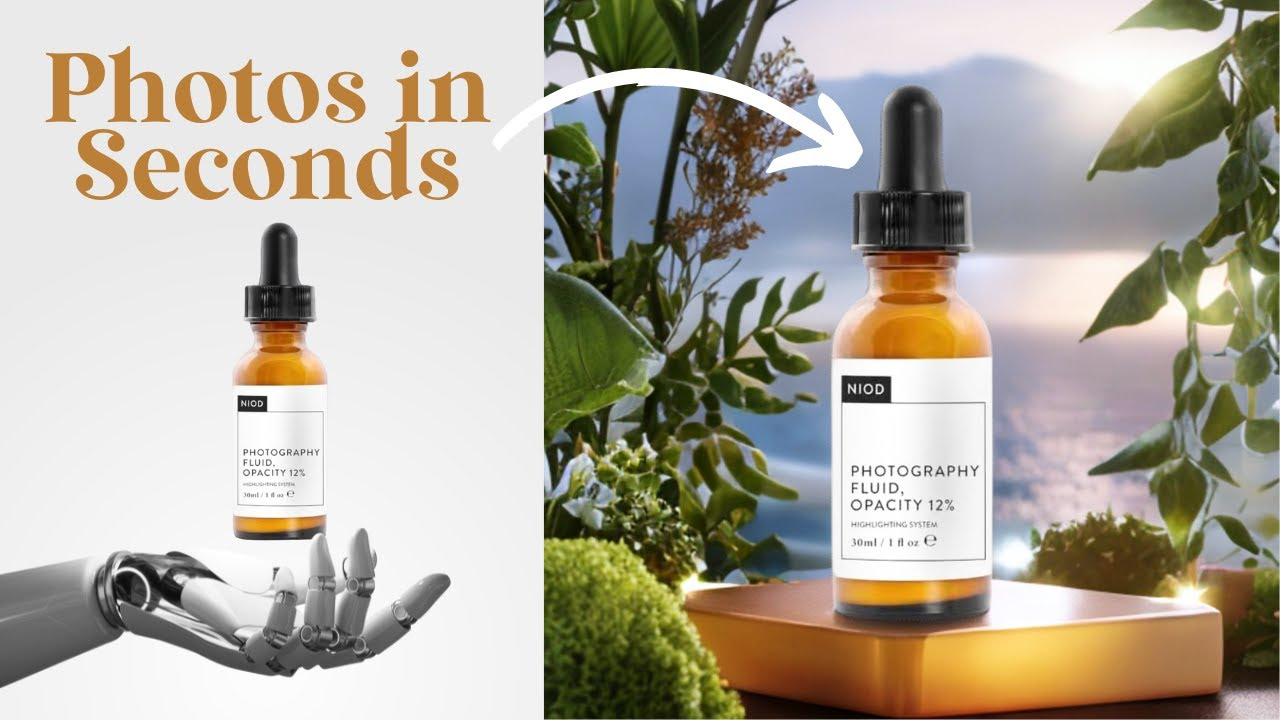
Hunyuan Image 3 Instruct works from a plain-language instruction: describe the change, and it edits the existing image while preserving what should stay the same — in this case, the product itself. "Replace the background with a clean studio backdrop and soften the lighting" is a workable starting instruction. The model keeps the product's shape, color, and detail intact while changing everything around it.
Placing a product into a styled scene
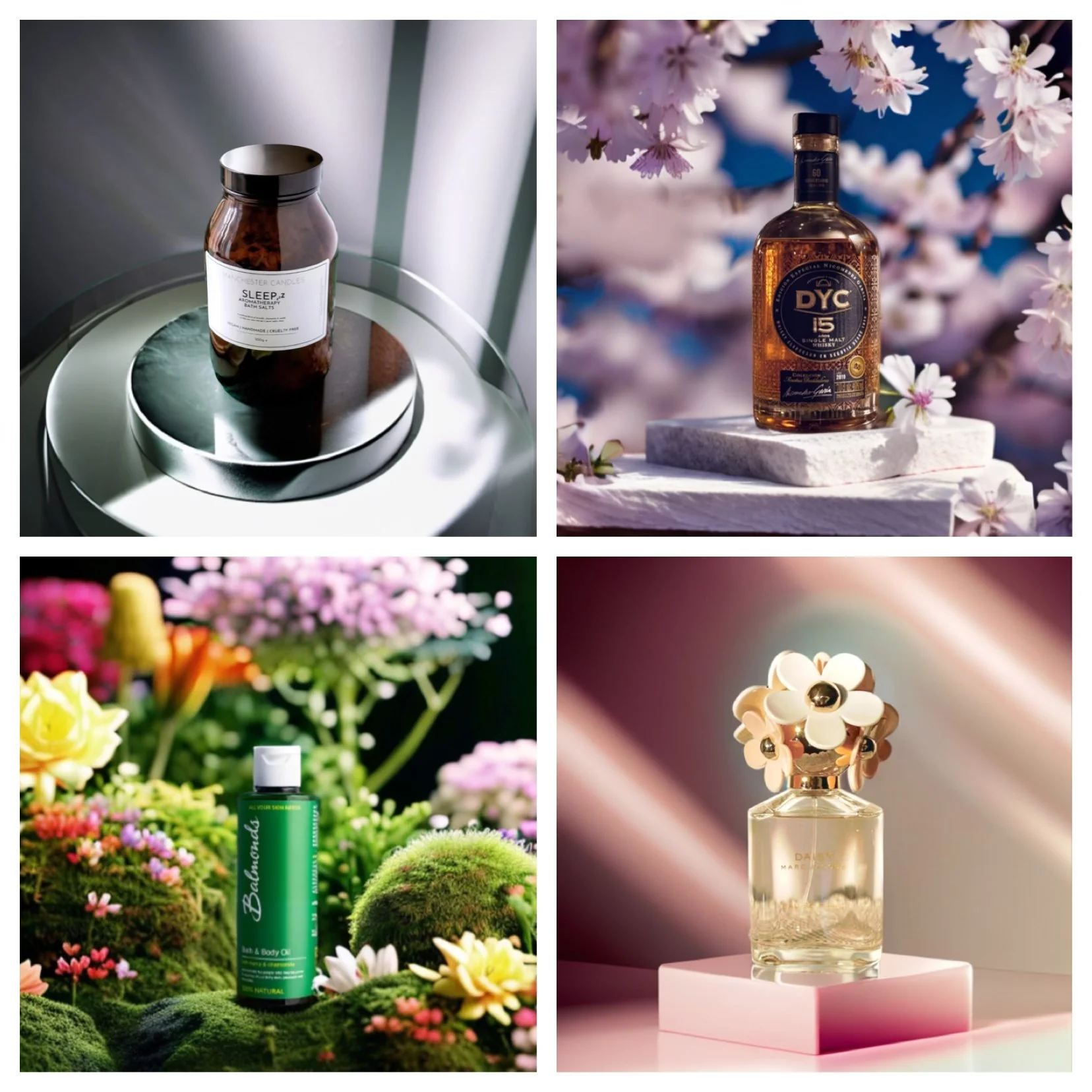
For a more specific target look — a product on a marble countertop, in a lifestyle scene, next to particular props — Seedream 4.5's reference-based compositing approach is a better fit than a text-only instruction. Feed in the product photo alongside a reference image of the target scene or styling, and the generation combines them: the product placed convincingly into that context, rather than just a background swap.
This is the difference between "clean up what's here" (Hunyuan Image 3 Instruct's strength) and "place this into somewhere specific" (Seedream 4.5's reference-based strength) — worth picking based on which problem the photo actually has.
A simple workflow
Start with a clear, well-framed shot of the actual product — angle and focus matter more than background at this stage, since background is what gets replaced. Then describe the target: lighting style, background type or scene, any specific context. Generate a few variations and pick the one that reads best; small wording changes to the instruction (warmer lighting vs. neutral, a specific surface material) usually get closer than trying to nail it in one prompt.
What this doesn't fix
Worth being direct about the limit here: this is a context and presentation upgrade, not a photo-quality miracle. A blurry shot, a badly cropped product, or a genuinely poor angle on the product itself won't be fully rescued by changing the background and lighting. The starting photo still needs the product itself reasonably well captured — sharp, in frame, recognizable. What these tools remove is the need for a studio setup and professional lighting on top of that, not the need for a decent original shot.
For output as a video rather than a still image — a short ad clip instead of a listing photo — see AI Product Video Ads: Turn Product Photos into Scroll-Stopping Video.
Create your free Siray account and turn a raw product shot into a polished image today.